Packages in AgentView
In AgentView The graphical user interface of the CMP that is typically used by Customer Service Agents to access CMP customer and billing data. In versions prior to CMP 8.0, this was called the CMP GUI., customers can purchase three kinds of packages:
Customers can also can also request receipts for purchases, which can be viewed in AgentView.
Base Packages
A base package contains essential services and/or discounts needed to fulfil a subscriber The end user of a network.’s contract, such as their monthly recurring charge and services to drive their base allowances of minutes, data and/or texts.
Selecting a Base Package
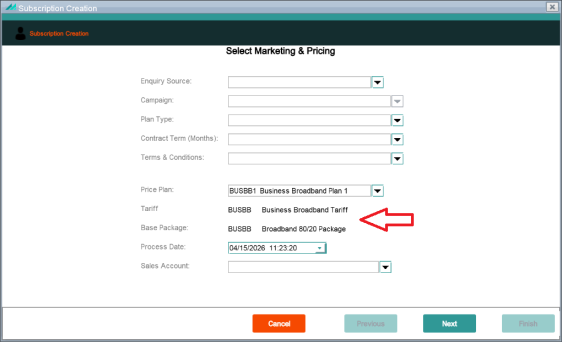
Base packages are part of price plans and are selected when a subscriber is created and maintained. For example, in the Subscription A billing entity that incurs a charge. Examples include a network attached device whose usage you want to measure and charge for, or a monthly software subscription Creation wizard, you select the price plan for a new subscriber. The tariff and base package linked to the price plan are displayed in the fields below the price plan.
Changing a Base Package
If a customer In the context of the Cloud Monetisation Platform, an individual or organisation who has signed an agreement to take goods and services from a service provider. A customer receives a bill associated with one or more subscriptions, and can be a single end user or a large company with many subscriptions assigned to one agreement. wants to change their base package, they need access the Subscription Management wizard from the connection status hyperlink on the subscription, from where they will choose another price plan and associated base package.

Bolt-on Packages
A bolt-on An addition to a subscriber's main plan or product; also sometimes called an add-on. package is an addition to a subscriber's main plan or product. It contains additional services and/or discounts for additional purchases a customer may make.
In CMP Converged Monetisation Platform. The MDS Global product that supports customer care and billing for digital service providers. allowances can be configured as shareable. When these allowances are assigned to a bolt-on package, the package becomes shareable and is known as a shared package.
Purchasing a Bolt-on Package
Bolt-on purchases take place in the Purchase a Product pop-up. Access Purchase a Product via the Purchase a Bolt-on right-click option in the Subscription Summary screen in either:
-
The Purchases pane in the Profile > Summary lower panel.
-
The Financials > Purchases lower panel.
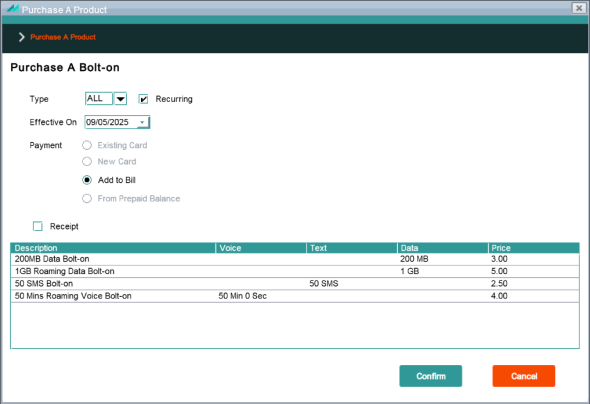
When a bolt-on package is being purchased, the fields in the Purchase a Product pop-up are as follows:
| Name | Description |
|---|---|
| Type | Filter the list of products by selected a type from the list: ALL, VOICE, TEXT or DATA. |
| Recurring | Select this checkbox to display only those products that can be added as recurring purchases. |
| Effective On | Use the date picker to select the date from which the product becomes available to the Subscription. |
| Payment |
Select a suitable payment option: Existing Card - if the account has a registered credit or debit card, this option is active and selected and the card number and expiry date are displayed in a drop-down. New Card - Use a credit or debit card that is not on record for the customer Add to Bill - add the cost of the purchase to the customer's next invoice From Prepaid Balance - this option is active if the customer has credit in their prepaid balance. |
| Receipt | For certain payment types, e.g. Card, the customer can request a receipt. Select this check box for a receipt. |
| CMP displays the products available for purchase. Shared packages are not listed because they can be purchased only at Agreement level. The products are listed in a table with the following column headings: | |
| Description | The descriptive name of the product. e.g. 100 GB Roaming Data Bolt-On. |
| Voice | For a bolt-on with Voice, the units of Voice available (usually Minutes). |
| Text | For a bolt-on with Text (SMS) , the number of messages available. |
| Data | For a bolt-on with Data, the amount of data available, e.g. GB, MB. |
| Price | The price of the product. |
Purchasing a Shared Package
Customers can purchase shared bolt-on packages only for agreements. Shared packages cannot be purchased with prepaid balance. A shared package is charged to the account In the Cloud Monetisation Platform, a billing entity that can be used to manage payments on one or more subscriptions or payments for services. An account can hold details such as payments or invoices. at which the agreement In the Cloud Monetisation Platform, the entity that holds the instructions for generating the bills for one or more subscriptions. including the addresses and how often the bill is generated. is logged as an account service, and thus only account services are defined for shared bolt-on packages. All subscriptions attached to the agreement can share the package allowances and these subscriptions form the shared structure known as the shared group In the Customer Manager Platform hierarchy, the highest level of the structure. The group level can be used to group corporates. Groups can hold financial information..
The shared group is created when the package is connected (not when it is purchased). Subscriptions can belong to only one shared group and they cannot move from the group once it is created.
The account service ends when the package ends, although the shared group does not expire. Shared allowances cannot be ended as unshared allowances can.
Shared bolt-on purchases take place in the Purchase a Product pop-up. Access Purchase a Product via the Purchase Bolt-on right-click option in the Billing > Shared Groups panel in the Agreement Summary screen.
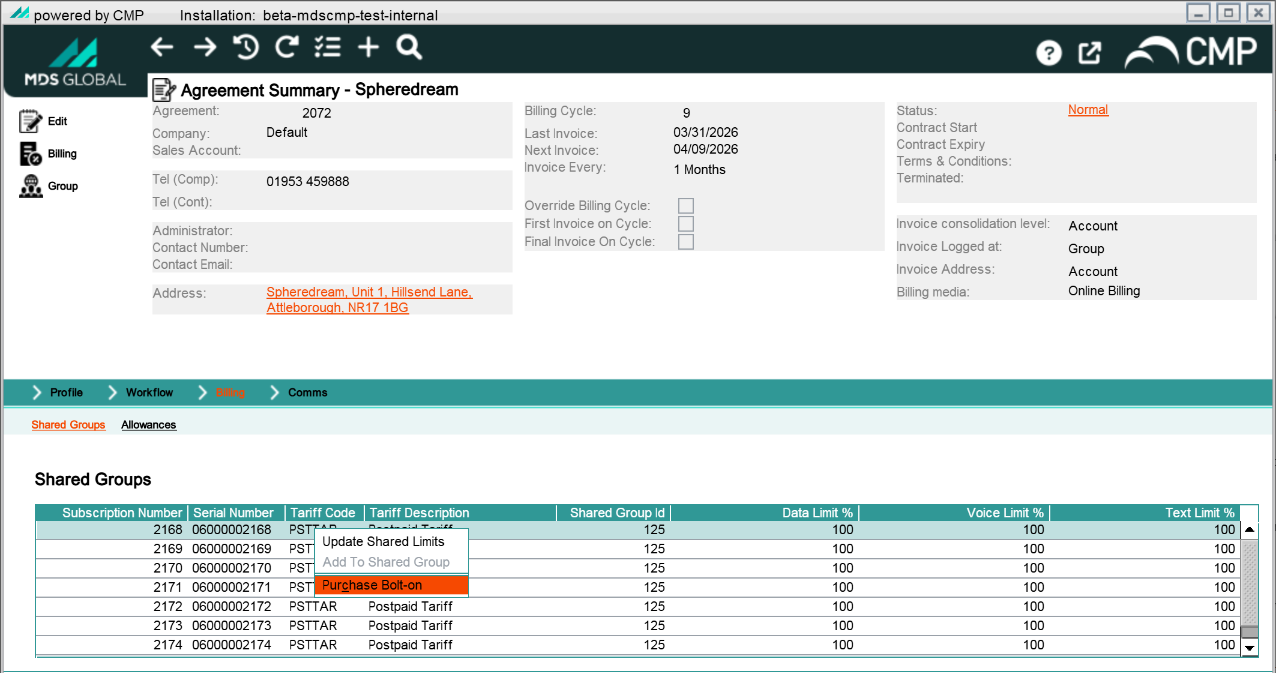
To buy a shared package access Purchase a Product via the Agreement Summary screen Purchases Products pane
When a shared package is being purchased, the Purchase a Product pop-up has the following fields:
| Name | Description |
|---|---|
| Type | Filter the list of products by selected a type from the list: ALL, VOICE, TEXT or DATA. |
| Recurring | Select this checkbox to display only those products that can be added as recurring purchases. |
| Effective On | Use the date picker to select the date from which the product becomes available to the Subscription. |
| Payment |
Select a suitable payment option: Existing Card - if the account has a registered credit or debit card, this option is active and selected and the card number and expiry date are displayed in a drop-down. New Card - Use a credit or debit card that is not on record for the customer. Add to Bill - add the cost of the purchase to the customer's next invoice. From Prepaid Balance - this option is inactive. |
| Receipt | For certain payment types, e.g. Card, the customer can request a receipt. Select this check box for a receipt. |
| CMP displays available shareable products. The products are listed in a table with the following column headings: | |
| Description | The descriptive name of the product. e.g. 100 GB Roaming Data Bolt-On. |
| Voice | For a bolt-on with Voice, the units of Voice available (usually Minutes). |
| Text | For a bolt-on with Text (SMS) , the number of messages available. |
| Data | For a bolt-on with Data, the amount of data available, e.g. GB, MB. |
| Price | The price of the product. |
Top-up Packages
A top-up package is for additional services for prepaid subscribers only. Typically, top-ups are used to purchase credit for a prepaid balance.
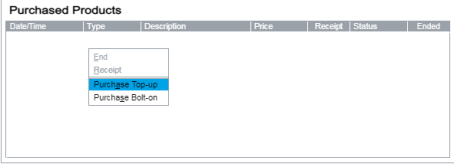
Top-up purchases take place in the Purchase a Product popup. Access Purchase a Product via the Purchase Top-up right-click option in the Subscription Summary screen in either:
-
The Purchases pane in the Profile > Summary lower panel:
-
The Financials > Purchases lower panel.
When a top-up package is being purchased, the fields in the Purchase a Product pop-up are as follows:
| Name | Description |
|---|---|
| Type | Inactive - all top-up packages are displayed. |
| Recurring | Inactive - top-up packages are not recurring. |
| Effective On | Inactive. |
| Payment |
Select a suitable payment option: Existing Card - if the account has a registered credit or debit card, this option is active and selected and the card number and expiry date are displayed in a drop-down. New Card - Use a credit or debit card that is not on record for the customer. Add to Bill - inactive. From Prepaid Balance - this option is active if the customer has credit in their prepaid balance. |
| Receipt | For certain payment types, e.g. Card, the customer can request a receipt. Select this check box for a receipt. |
| CMP displays the top-up products available for purchase. The products are listed in a table with the following column headings: | |
| Description | The descriptive name of the product. e.g Top-up. £10 Cash |
| Voice | For a top-up with Voice, the units of Voice available (usually Minutes). |
| Text | For a top-up with Text (SMS) , the number of messages available. |
| Data | For a top-up with Data, the amount of data available, e.g. GB, MB. |
| Price | The price of the product. |